Streamlined three-tier loyalty program where every member enjoys the same high-quality rewards, with benefits escalating at each tier.
Simple yet effective, this program stands as the best deal for Eloking's boosting services, ensuring maximum value and satisfaction for all our users.
Cashback on all Eloking boosts (3%, 5%, 7%)
Discounts for all Eloking boosts (5%, 10%, 15%)
Discount for a friend 🤗
Free daily lootbox spin with industry-leading rewards
Member exclusive season and event offers
Best FragPunk settings for ranked
h
Hamza Rashid
Gamer
03 Feb 2026
Updated On
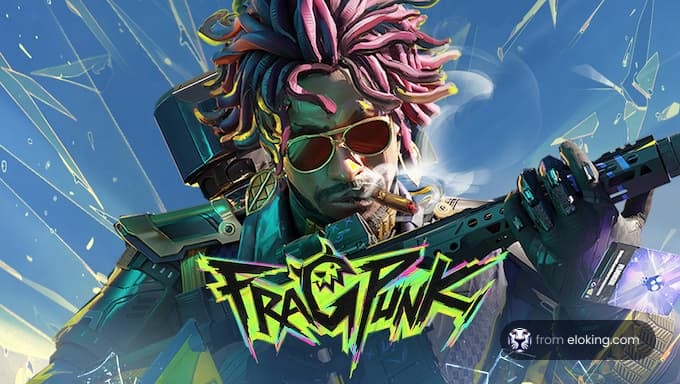
FragPunk [1] is the newest in the long line of free-to-play FPS games that lets players choose between multiple characters with differing abilities. While it hasn’t been able to make the same amount of waves as Marvel Rivals, that doesn’t mean it doesn’t have a dedicated player base that absolutely loves the unique features it brings to the table.
However, as it is with every competitive game, the settings you choose determine how well you can play in any given match. FragPunk is no different, as it gives players a long list of settings they can customize, including graphics, crosshair, and network. We’re here to go through all of the best settings you should use for ranked mode.
So, if you want to start stacking up those wins then keep reading because we have you covered with the best FragPunk settings for ranked.
Best sensitivity in FragPunk
Finding the proper sensitivity in FragPunk is essential for accuracy and responsiveness. Since playstyles vary, no setting works for everything, but setting the Look Sensitivity to 1.3 is a good place to start. Players should adjust their value based on their performance. If they’re overcorrecting their aim, they must lower their sensitivity, and if the crosshair is trailing behind opponents, they need to increase it.
The ADS Mouse Sensitivity Multiplier should be between 1 and 0.75. This setting ensures the player’s aim is steady while scoped in. Also, players should keep the Invert Camera settings turned off unless they’re used to inverted controls.
The best way to find the perfect sensitivity is by practicing in the training mode and making tiny adjustments.
other.widget.title
other.widget.description
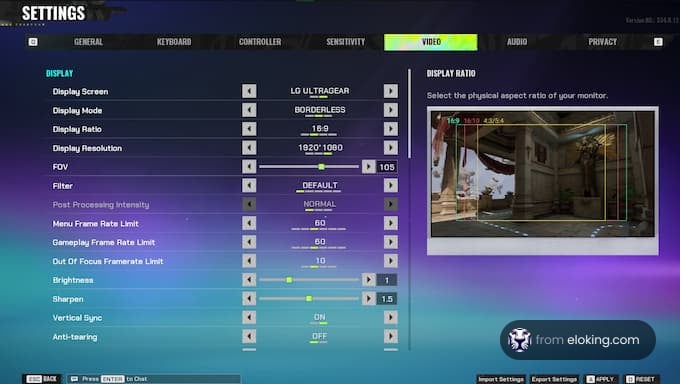
Best graphics settings in FragPunk
Optimizing graphics settings ensures players have a smooth gameplay experience without sacrificing visual clarity. Here’s a breakdown of the best settings:
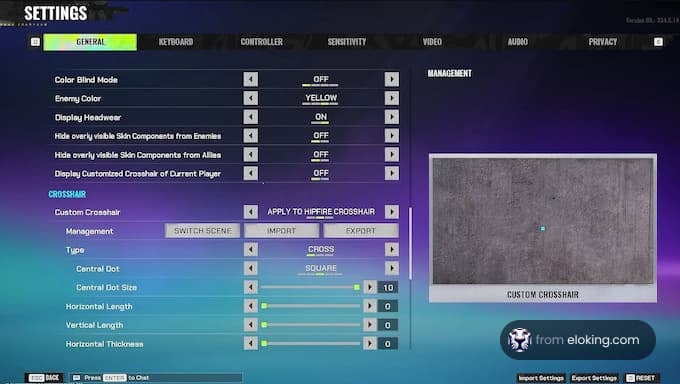
Your crosshair is essential for landing shots. Optimize it with the following settings:
Color: Bright Green, Cyan, or Magenta (contrasts with most backgrounds).
Opacity: 80-100%.
Thickness: 1-2 (visible but not obstructive).
Length: 3-5.
Center Dot: Optional (useful for precise aim).
Outlines: On (improves visibility).
Players must test different styles in training mode to find the best for them. A good crosshair can improve a person’s accuracy and reaction time in high-tension moments.
Best audio settings in FragPunk
Clear audio cues are essential for tracking enemies and abilities. Use the following settings:
Master Volume: 100%.
SFX Volume: 80-100% (prioritize footsteps, gunshots, and ability sounds).
Music Volume: 0-30% (minimize distractions).
Voice Chat Volume: Adjust based on preference.
3D Audio: On (if supported, enhances positional awareness).
Lowering the music volume allows players to focus on in-game sounds like enemy footsteps and ability cues, giving them an advantage.
Best network settings in FragPunk
Players can ensure a smoother ranked experience by using a wired Ethernet connection instead of Wi-Fi. They should also close bandwidth-heavy apps like Chrome to prevent latency issues. Gamers should constantly monitor their network performance using in-game settings to resolve connectivity issues.
Best feature settings in FragPunk
FragPunk offers multiple quality-of-life settings that can improve the gameplay experience. Players should enable the following settings:
Automatic Climbing: On.
Automatic Sprint: On.
Camera Shake During Sprint: Off.
FOV Sprint Scaling: Off.
Switch Weapon on Pickup: On.
Flash Eye Guarding Mode: On (reduces eye strain in dark rooms).
Target Guide: On.
Paint Road Guide: On.
Interactable Door Highlights: On.
Limit Mouse Area (Out of Match): On.
Default Scope Magnification: Low Magnification.
Players should experiment with these settings to find the perfect balance between comfort and functionality. For example, enabling Flash Eye Guarding Mode can make gaming sessions more comfortable, especially in low-light environments.
Extra tips for ranking up in FragPunk
Practice with Minimalist Graphics: While flashy effects can look nice, they can distract players during intense moments. Minimalist Graphics allows people to focus on the gameplay.
Communicate with the team: Players must utilize the Push-To-Talk and pinging features to coordinate with their team.
By optimizing these settings, players will be ready to climb the ranks in FragPunk.
References
[1] "Fragpunk website". www.fragpunk.com. Retrieved March 22, 2025
FAQs
Start with a Look Sensitivity of 1.3 and adjust based on your performance. ADS Mouse Sensitivity Multiplier should be between 0.75 and 1 for steady aim while scoped.
Use Borderless display mode, native resolution, and a FOV of 105. Turn off Vertical Sync, set Post Processing Intensity to None, and use either DX12 or DX11 depending on VRAM.
Use a bright color like green or cyan, with an opacity of 80-100%, a thickness of 1-2, and a length of 3-5. Outlines should be on. Test in training mode to find what works best.
The blog post contains many viable options for keybinds. These include setting Primary Weapon to Scroll Wheel Up or 1, Converter to Caps, and Skill 1 to Q. Experiment to find what is most comfortable!
What’s next?
Now that you have learned something new - it’s time you start playing and get better. Choose a game to purchase Eloking Boost for.
Purchase ELO Boost at Eloking
and start playing at the rank you deserve!











 Quality
