Streamlined three-tier loyalty program where every member enjoys the same high-quality rewards, with benefits escalating at each tier.
Simple yet effective, this program stands as the best deal for Eloking's boosting services, ensuring maximum value and satisfaction for all our users.
Cashback on all Eloking boosts (3%, 5%, 7%)
Discounts for all Eloking boosts (5%, 10%, 15%)
Discount for a friend 🤗
Free daily lootbox spin with industry-leading rewards
Member exclusive season and event offers
How to change FOV in Overwatch 2
h
Hamza Rashid
Gamer
03 Feb 2026
Updated On
The field of view is important in any competitive shooter, since it ensures that players can actually see the game the way they want. While Overwatch 2 is a third-person shooter, and that means FOV isn’t as important, it’s still a good idea to ensure you know how to change it if required.
Today, we’re here to go through everything you need to know about changing the FOV in Overwatch 2. This includes highlighting the advantages of the FOV and all of the FOV settings that Blizzard lets players change in the game.
Without any further delays, here’s how you can change FOV in Overwatch 2.
What FOV settings can you change in Overwatch 2?
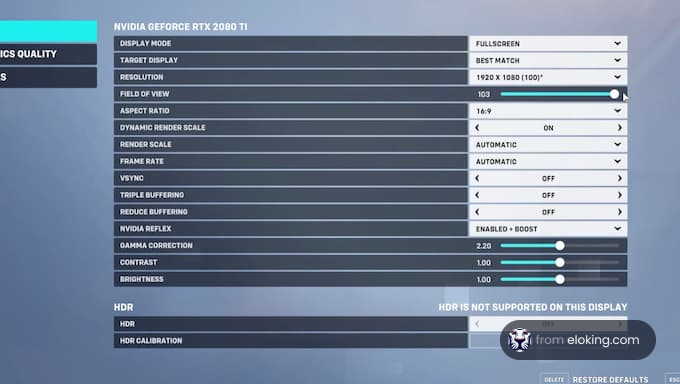
On PC, Overwatch 2 gives you a good amount of freedom when it comes to FOV. You can change the first-person FOV slider between 80 and 103. Sliding it higher lets you see more of your surroundings, great for spotting flanks or team fights, but also makes enemies appear smaller. Some players prefer a lower FOV because it feels more focused. You can also change the third-person FOV in Overwatch 2, but that is limited to the Stadium mode.
On consoles, your options are more limited. PlayStation, Xbox, and Switch players don't get a slider, meaning you’re locked into the default mid-range FOV that Blizzard has chosen. This is to keep the game stable and prevent frame drops, but it does take away the fine-tuning PC players enjoy.
Struggling to win? Bad teammates?
Purchase a game with one of our PRO players.
One game
Average wait time <30 minutes
$4.00
$3.32 per game
Two games
Average wait time <30 minutes
$8.00
$3.00 per game
Three games
Average wait time <30 minutes
$12.00
$2.50 per game
How to change FOV settings in Overwatch 2?
Tweaking your FOV on PC only takes a moment and can make a big difference in how natural the game feels. Here is how to do it:
How to change your first-person FOV on PC
Launch Overwatch 2 and open the Options menu.
Head to the Video tab.
Find the Field of View (FOV) slider.
Adjust between 80 and 103 based on what feels comfortable.
Apply the changes and test them in a match or training range.
How to change your third-person FOV in Stadium mode on PC
Open the Settings menu from the pause screen.
Go to the Controls tab, then select Stadium from the list on the left.
Make sure Camera Perspective is set to Third Person.
Just below, adjust the third-person FOV slider between 50 and 90.
Instead of jumping straight to max settings, it's usually smarter to make small tweaks and see how your aim and awareness adjust. Experiment until the view feels natural and doesn't strain your eyes.
What FOV is best for each playstyle or hero in Overwatch 2?
The best FOV setting depends on your role and the heroes you play most. Tanks and supports get the most out of a wider FOV since it makes it easier to watch your team, track flankers, and read fights as they play out. Fast-moving DPS like Tracer or Genji also feel smoother with the max 103 setting. On the other hand, precision heroes don't always need the widest view. Hitscans like Cassidy or Ashe may feel more comfortable around 90-95, where enemies look a little larger for steady aim.
But if you play a variety of heroes, it’s usually best to keep your FOV close to the maximum. That way, you’ll maintain awareness without needing to tweak the setting every time you swap characters. Finally, if you have a low-end PC, a narrower FOV can ease the strain on performance as well. In short: go wide for awareness, or keep it low if precision or performance is your focus.
FAQs
Unfortunately, you can't change the FOV on PlayStation, Xbox, or Switch. Blizzard locks it to the default setting to maintain stable performance.
A wider FOV (close to 103) is often best for tanks. It helps you track enemies and better protect your teammates during chaotic team fights.
Go to Settings > Controls > Stadium. Ensure Camera Perspective is set to Third Person, then adjust the FOV slider between 50 and 90.
On PC, the first-person FOV slider goes from 80 to 103. In Stadium mode, the third-person FOV can be adjusted between 50 and 90.
Go to Options > Video and find the Field of View (FOV) slider. Adjust it between 80 and 103 to your preference, then apply the changes.
What’s next?
Ready to level up your gameplay and climb the ranks in Overwatch 2? Purchase our top-notch Eloking Overwatch 2 Boost now and dominate the competition like never before!
Purchase Overwatch 2 Boost
and start playing at the rank you deserve!





















 Quality
