Streamlined three-tier loyalty program where every member enjoys the same high-quality rewards, with benefits escalating at each tier.
Simple yet effective, this program stands as the best deal for Eloking's boosting services, ensuring maximum value and satisfaction for all our users.
Cashback on all Eloking boosts (3%, 5%, 7%)
Discounts for all Eloking boosts (5%, 10%, 15%)
Discount for a friend 🤗
Free daily lootbox spin with industry-leading rewards
Member exclusive season and event offers
How to Fix Dota 2 Task Manager Suspended on a Windows Laptop
h
Hamza Rashid
Gamer
09 Jul 2026
Posted On
Listen to this post
TL;DR: Dota 2 showing "Suspended" in Task Manager usually means Windows is pausing the game, often because laptop power settings change when plugged in. Fix plugged-in performance mode first, then verify Steam files if needed; only reinstall if the suspension persists across both battery and AC power.
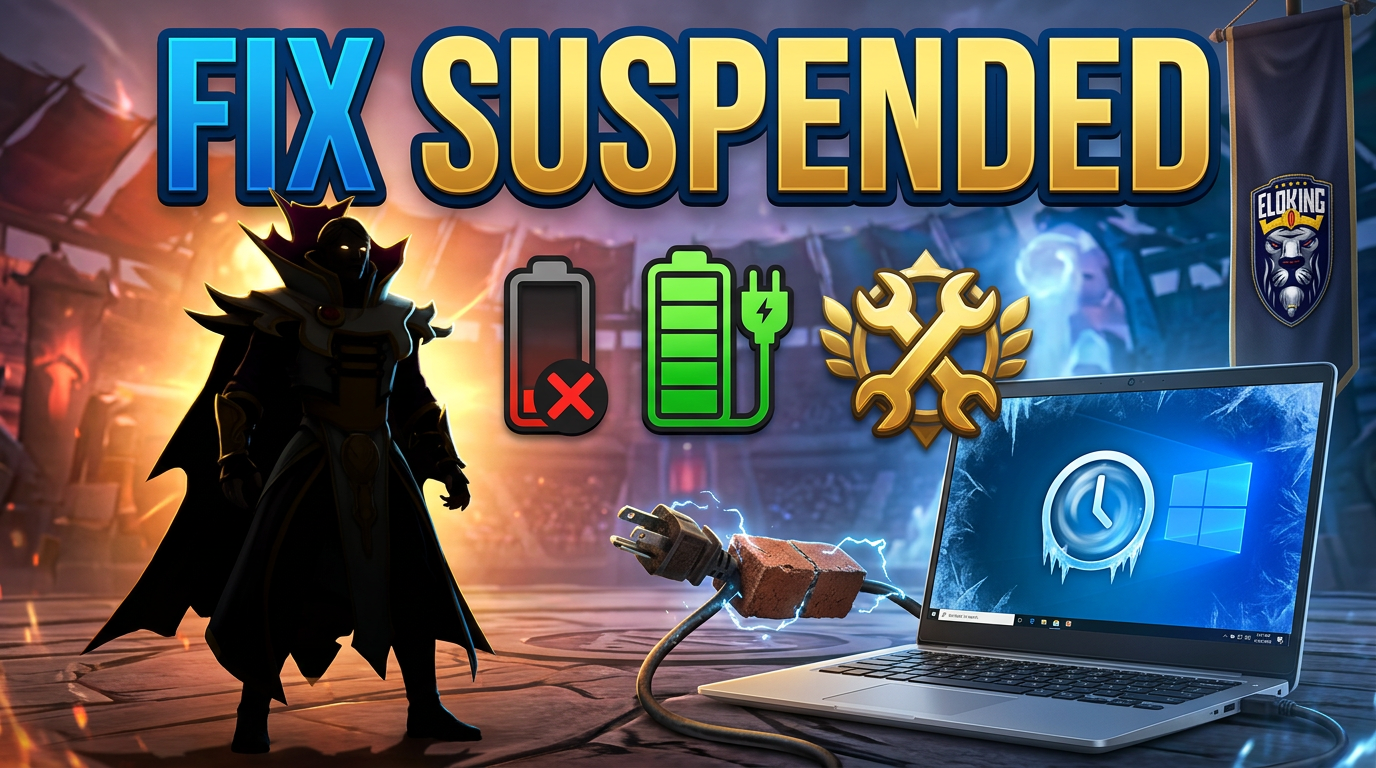
Dota 2 is still there in Task Manager - still making sound, still not dead - and yet Windows has slapped it with the one status that makes everything feel worse: Suspended. The strangest part is that the game may run fine on battery, then choke the moment the laptop gets plugged in, as if the charger itself flipped a hidden switch. That is not a normal launch failure or a broken install; it's a process that Windows has paused on purpose. Before you blame Steam or reinstall anything, the real question is why AC power is putting the game into a suspended state at all.
The answer starts with the laptop's power settings, and the wrong one can quietly throttle a game into invisibility without killing it outright. If that sounds backwards, good - that's exactly why this bug is so maddening, and why the fix begins somewhere most players never think to check.
Task Manager "Suspended" usually means Windows paused Dota 2, not that the game is dead
The Steam Community report on DotA2 'suspended' in task manager is painfully specific: the game freezes, goes invisible, still makes sound, and then shows up as suspended in Task Manager. That is not the usual "game won't launch" mess. It is a process that is still there, but Windows has put it in a bad state. The poster's first real clue was that it happened when the laptop was plugged in, while unplugged play was fine. That is the kind of detail you do not ignore.
Windows itself uses "Suspended" as a process state where the app is paused and not getting CPU time. Microsoft's own Q&A answers tie that state to power-saving behavior, energy use, and app suspension rules rather than file corruption. In practice, that means you should read the symptom as an OS-level pause first, not a dead game file. Dota 2 is not randomly broken here; the signal points at process handling and power behavior.
So if you are staring at Task Manager and thinking "my install is cooked," slow down. The better read is: Windows is probably throttling, pausing, or otherwise treating the game differently on this machine. That is why the next move is to hit the laptop's power settings, not panic-delete the game.
Struggling to win? Bad teammates?
Get a guaranteed win with a 7000+ MMR pro - starts in under 30 minutes.
One game
Average wait time <30 minutes
$4.00
$3.32 per game
Two games
Average wait time <30 minutes
$8.00
$3.00 per game
Three games
Average wait time <30 minutes
$12.00
$2.50 per game
Change the plugged-in power profile before you touch anything else
Open Windows Power & Battery settings and check the profile for when the charger is connected.
Set the plugged-in profile to the highest performance option available, not a balanced or battery-saving mode.
Disable battery saver and any OEM "quiet," "eco," or "smart" modes that can clamp performance while charging.
Restart Dota 2 while still plugged in and watch Task Manager for the same suspended behavior.
Compare the result against unplugged play, because the plugged-in vs unplugged split tells you whether the laptop power profile is the real trigger.
The Steam reply on the issue pointed to laptop power settings as the likely cause and recommended a high-powered profile when plugged in. That lines up with the symptom pattern in the thread: the game was fine unplugged, but acted up on AC power. Use that clue. If the machine only chokes while charging, that is your lead, and you should follow it before you start blaming Steam, Vulkan, or the whole install.
Test one power change at a time so you know what actually worked
Record the current power mode before changing anything, so you can reverse it if needed.
Switch only one variable first, such as the plugged-in power plan, and leave the rest alone.
Launch Dota 2 immediately after the change and test in the same plugged-in state that caused the bug.
Check whether the process still flips to Suspended, because that is the outcome that matters.
Use the same test setup each time so you can tell whether the power change actually made a difference.
Do not shotgun five settings at once and call it "fixed." That is how people fool themselves. If you change power profile, battery saver, and some vendor utility all at once, you will never know what mattered. Keep it tight. One clean test, one clear result, one answer: did the suspended behavior stop or not? The Steam thread shows why this discipline matters, because the original poster's charging-performance tweak still did not solve the issue.
If the game launches cleanly after a single change, great. Lock that setting in and stop digging. If nothing changes, move on without guessing.
If power settings fail, verify the files before you reinstall Dota 2
Start with Steam's Verify integrity of game files option. That is the right fallback after power troubleshooting fails, because it checks the install before you waste time on a full reinstall. If that still does not change the suspended behavior, reinstalling is the next heavier step.
Reinstalling is heavier, slower, and usually overused. If the game is still showing as suspended after a sensible power fix and a clean verify, then reinstalling is fair game. But do not treat it like magic. The thread's takeaway is simpler: the issue survived a power tweak and a normal relaunch, so file repair is worth trying before you assume the install is broken.
My rule is simple: verify first, reinstall second, and only keep going if you still have the same plugged-in suspension behavior after both. At that point, you are not doing normal game repair anymore. You are chasing a deeper system issue.
Stop when the bug keeps showing up across power states
Once Dota 2 keeps going Suspended on both battery and plugged-in tests, the basic fix path is spent. That is the line. If the game still freezes, goes invisible, and forces you to kill it in Task Manager after verification, the problem is bigger than a single bad setting. You are no longer dealing with a one-click launch glitch.
At that point, the practical move is to keep narrowing the system side instead of beating up the game install again. Check what your laptop does to performance when charging, and treat every setting change like a test, not a superstition. That is how you beat this one: not by reinstalling louder, but by finding the setting Windows is using to sabotage the launch.
An external display can trigger a different graphics power profile, especially on laptops with hybrid GPUs. If the game only breaks when the monitor is attached, check the GPU selection, refresh rate, and the plugged-in performance mode together, because one of them is usually forcing a low-power path.
Yes. Some overlay, capture, and performance tools can interfere with the game's foreground state and make it stall without fully crashing. If disabling the power-saving settings does nothing, turn off every overlay and hook one by one and retest on AC power.
That pattern often means the process is still running while the render path has stopped responding. Audio can keep playing even when the video thread or display swap chain is effectively stalled, which is why Task Manager shows the process alive instead of dead.
A fresh update can reset power plans, graphics settings, or laptop vendor utilities back to aggressive savings modes. Recheck the plugged-in profile, processor boost behavior, and any OEM energy utility before you assume the install changed.
It can shorten battery runtime and push the machine harder than a balanced profile. The better move is to use the high-performance mode only while plugged in, then leave battery-saving behavior for actual mobile use.
What’s next?
Now that you have learned something new about Dota 2 - it’s time you start playing and get better at the game. We can help!
Purchase Eloking Dota 2 Boost right now
and start playing at the rank you deserve!


















 Quality
